 MyBasu
Learn MyBasu
Short guides for everything MyBasu does. Each one plays on a phone and shows you exactly where to tap.
Press play or pause under the phone, or tap any step to jump to it. The pictures are from an iPhone; MyBasu looks and works the same on Android, except where a guide says so.
Start here
Get started
Let MyBasu find the bus stops around you.
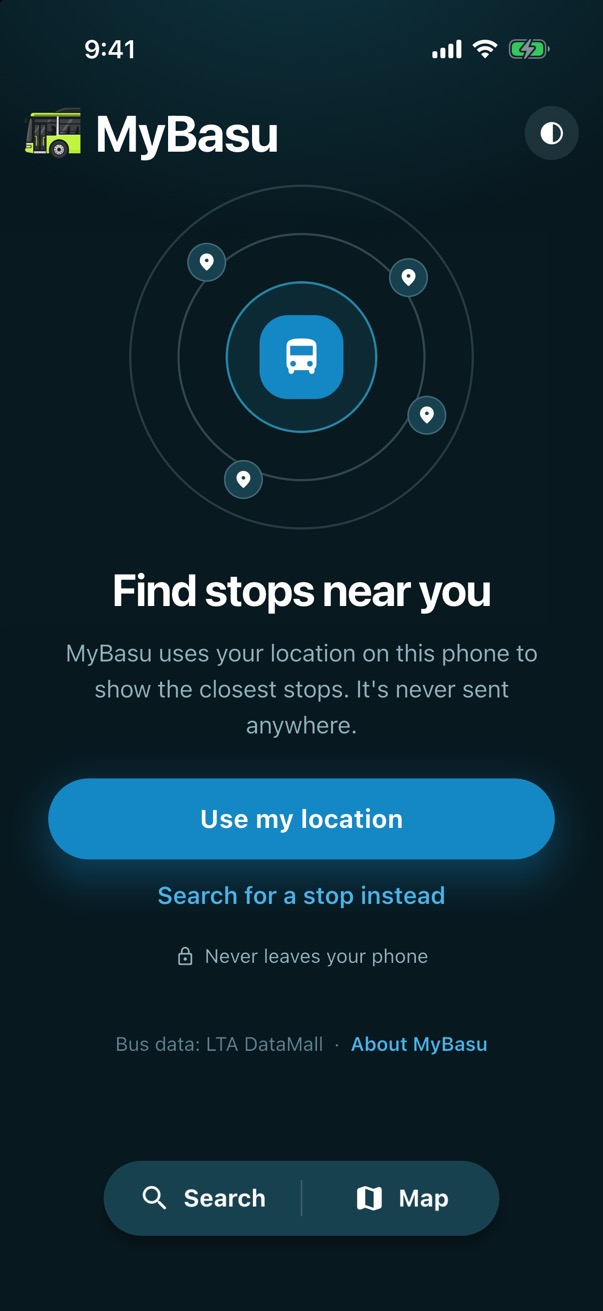
- Open MyBasu and tap Use my location.
- Your phone asks first. Tap Allow While Using App.
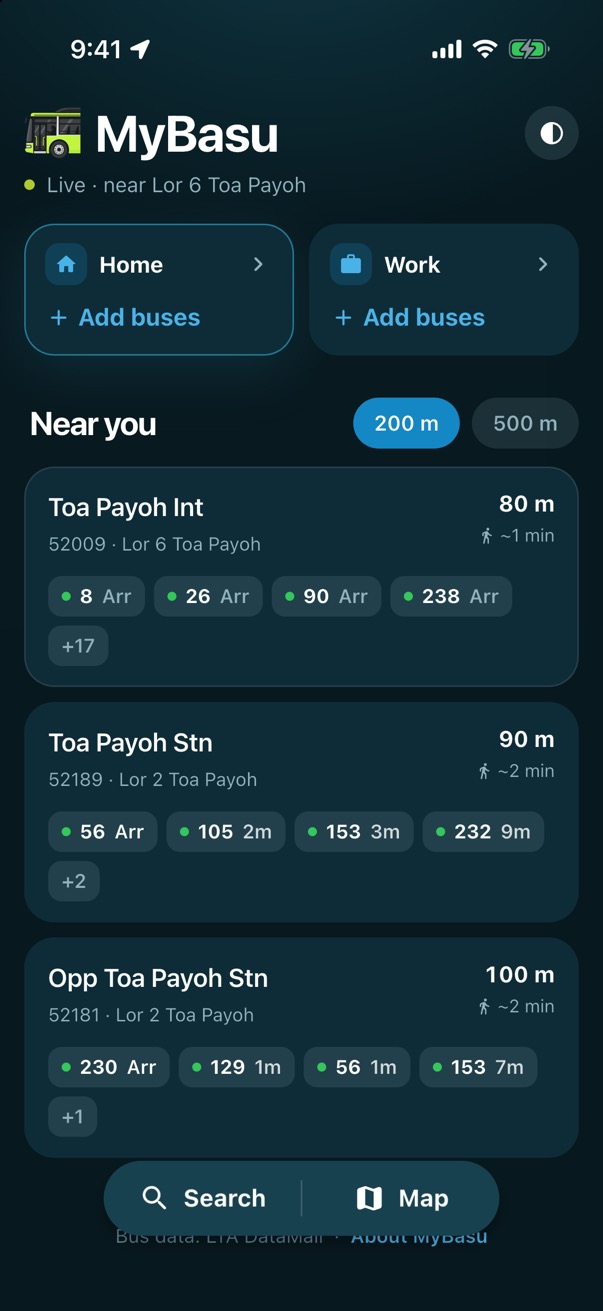
- That's it! The stops closest to you show under Near you, with their next buses.
Good to know: your location stays on your phone and is never sent anywhere. Rather not share it? Tap Search for a stop instead.
Read the bus times
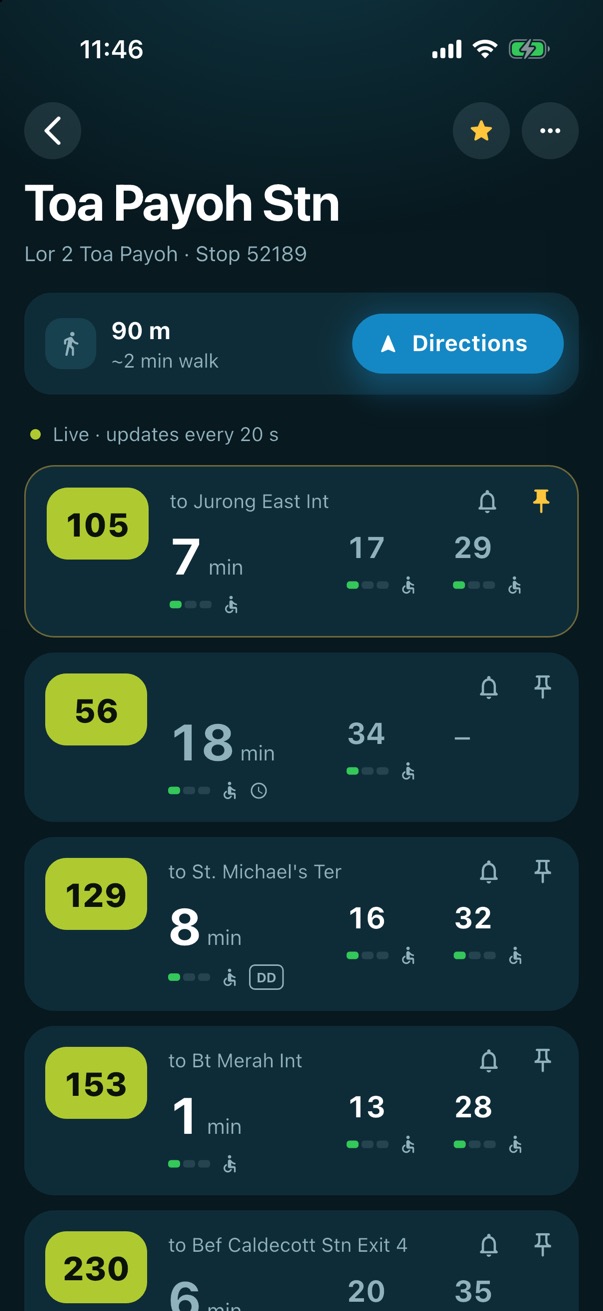
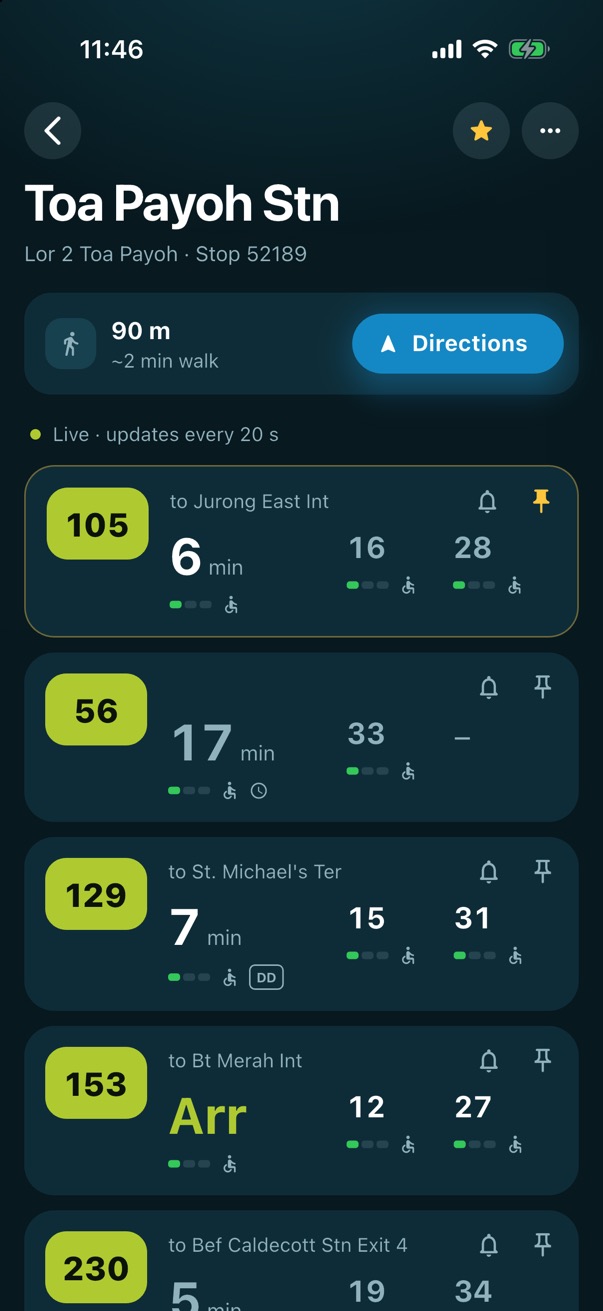
Open a stop to see when each bus will come.
- Tap a stop to open it.
- Each card is one bus. The lime tile is the bus number, and next to it is where the bus is going.
- The big number is when the next bus comes, in minutes. Arr means it's arriving now.
- The smaller numbers are the two buses after it.
- The bars show how full the bus is: green has seats, amber is standing room, red is very full.
- The dot means the times are live. They update by themselves every 20 seconds.
- Tap Directions to walk to the stop with your maps app.
Tip: every other sign on a bus card is explained just below, in What the symbols mean.
What the symbols mean
Everything you can see on a bus card, from left to right.
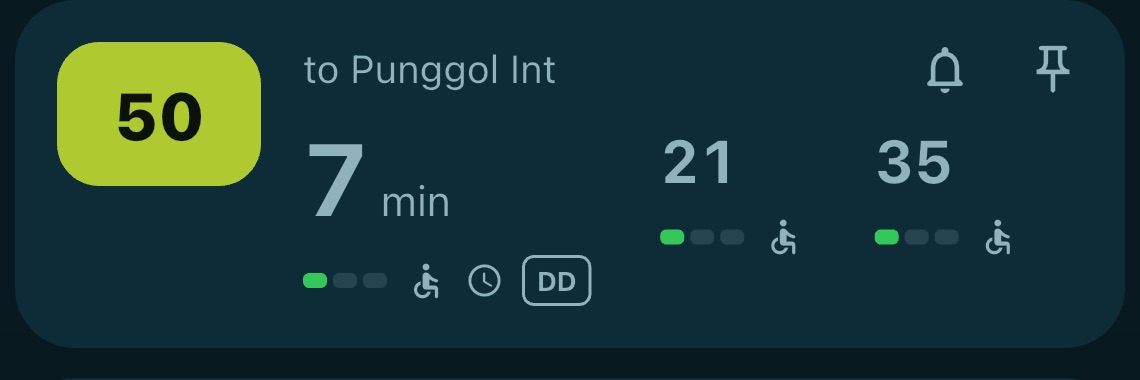
- 1Bus number.
- 2Where the bus is going. Loop services may not show one.
- 3Next bus, in minutes. Arr means it's arriving now.
- 4The two buses after it. A dash means there's no time for it yet.
- 5How full it is. seats, standing room, very full.
- 6Wheelchair accessible.
- 7Not tracked live yet. The time comes from the timetable, so it's shown in grey. It turns live once the bus is on its way.
- 8Double-decker bus.
- 9Alert me before this bus comes. See Arrival alerts.
- 10Pin this bus. It stays at the top of the stop and in your Favourites.
- Live at the top of the screen: the times are live.
- No live times: LTA has no times right now, for example late at night.
- Not live: MyBasu can't get times. Check your internet connection.
- NSTrain line, coloured like the MRT map, in journey suggestions.
Every day
Stops near you
Choose how far MyBasu looks for stops.
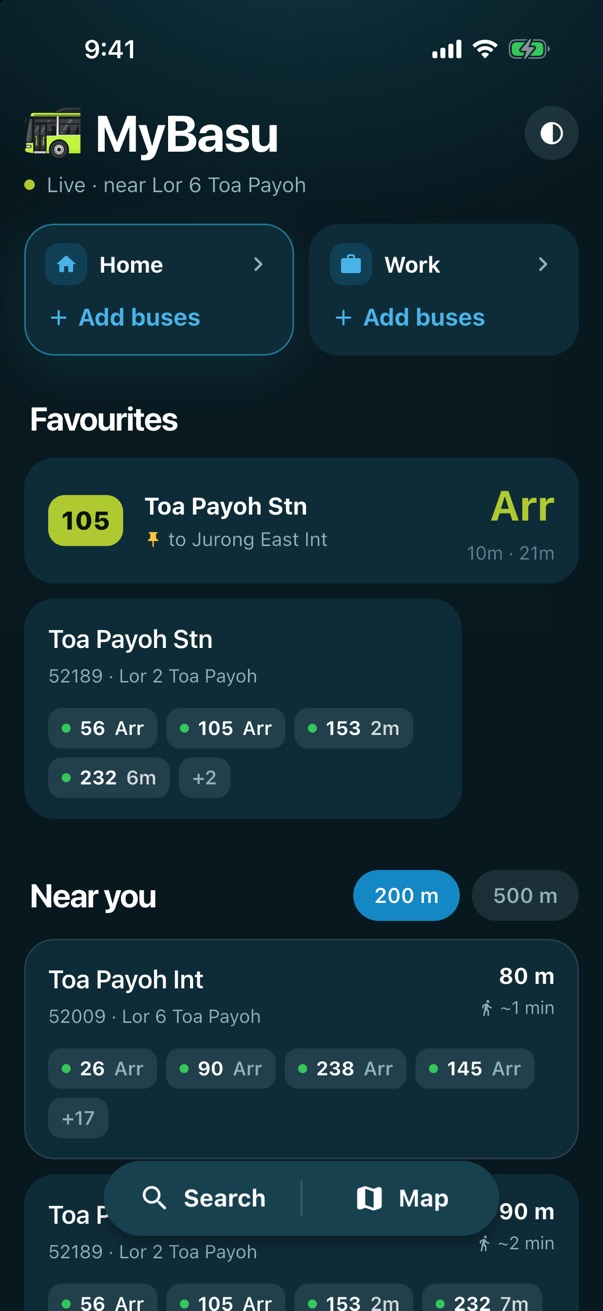
- Near you lists the closest stops first. Tap 500 m to look further away.
- Want another distance? Touch and hold a distance button.
- Type the distance in metres, from 50 to 5000.
- Tap Save.
- Your distance is added, and MyBasu remembers it next time.
Favourites and pinned buses
Keep the stops and buses you use most at the top of the home screen.
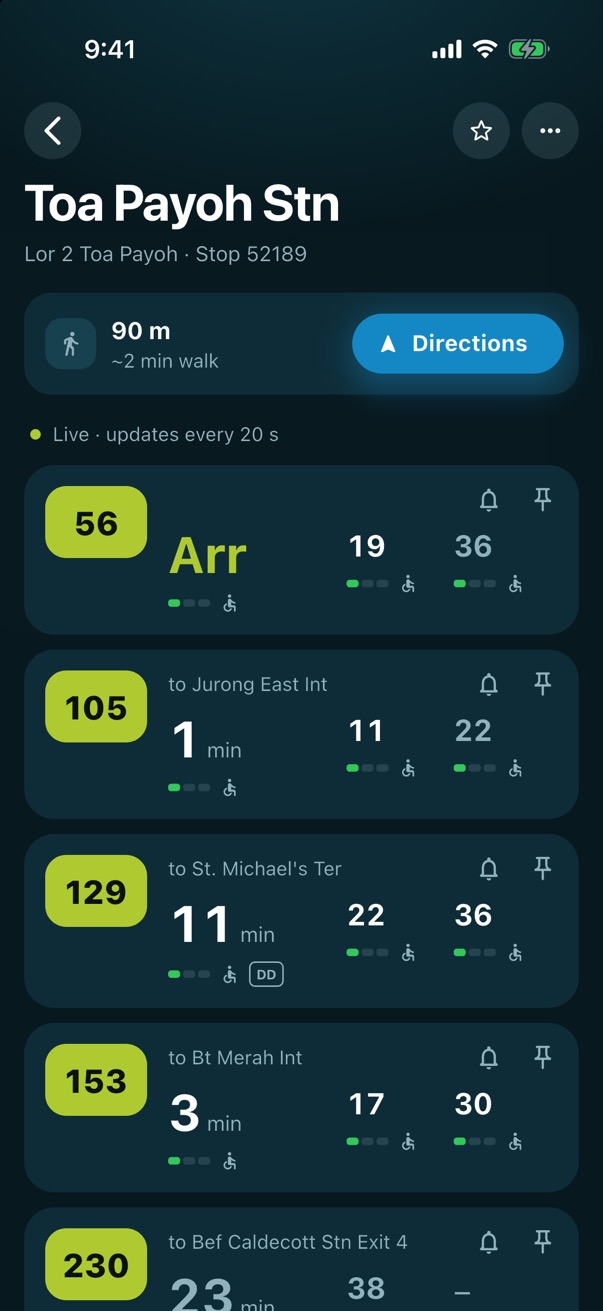
- On a stop, tap the star to make it a favourite.
- Catch one bus here most days? Tap its pin.
- Your pinned bus moves to the top of the stop. Now go back.
- Both wait for you under Favourites on the home screen.
Tip: tap the star or the pin again to remove it.
Find any bus stop
Look up a stop by its name or number, even one far away.
- Tap Search at the bottom of the screen.
- Type the stop's name, or its 5-digit number from the sign at the stop.
- Tap the stop under Bus stops.
- Here are all its buses, just like a stop near you.
Tip: short forms work both ways. Typing “interchange” also finds stops that LTA calls “Int”.
Plan a trip
Where to?
Get the fastest ways to any place, by bus and train.
- Tap Search.
- Type where you're going: a postal code, a road or a place.
- Tap the place you mean.
- Under Ways there are the ways to get there, soonest to arrive first.
- Don't mind a longer walk at the end? Tap 500 m for more choices.
- Tap a way to see every step.
- Walk, ride, walk: each step and how long it takes. Tap Directions for the walk.
Good to know: the total includes waiting, riding and walking. Train times are the operators' own; bus rides are MyBasu's estimates, so allow a few extra minutes.
Your buses for Home and Work
Save the buses you take, and see them the moment you open the app.
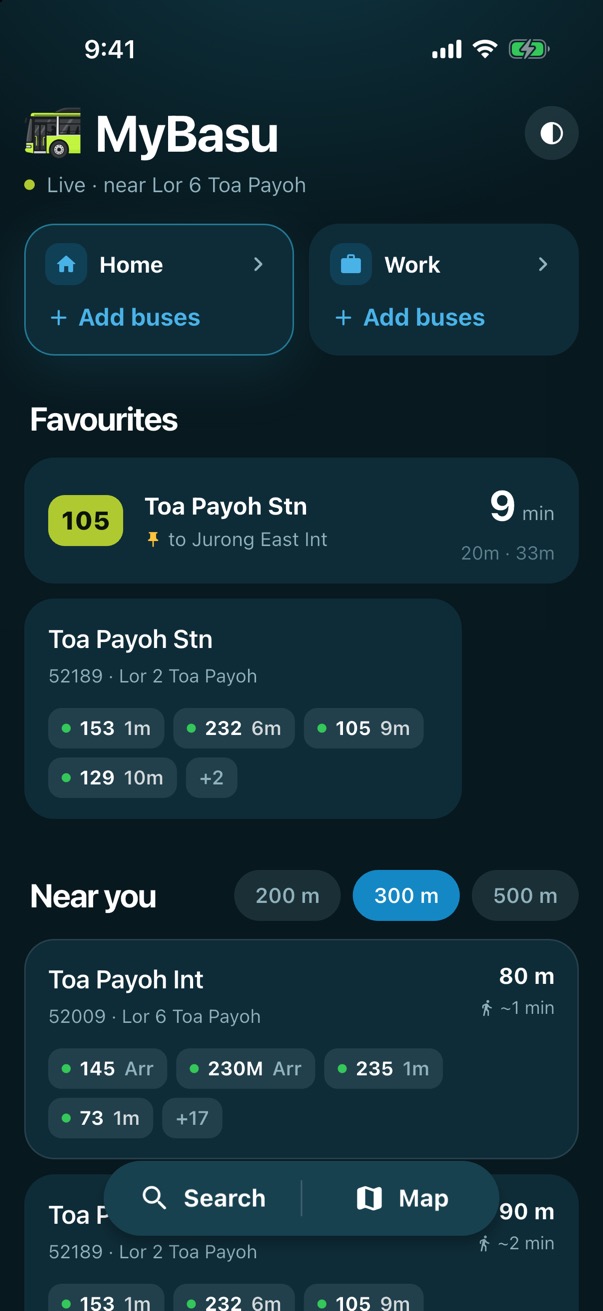
- Tap Home (or Work) at the top.
- Tap Add buses.
- Type the number of a bus you take.
- Tap your bus.
- Tap the stop where you catch it. The nearest stops are at the top.
- Done! Its next buses show here and on the Home tile.
Tip: you can also add buses from any stop. Tap ••• at the top right and choose Add buses to Home or Add buses to Work.
The fastest way home
Add your postal code, and MyBasu suggests the quickest way there from wherever you are.
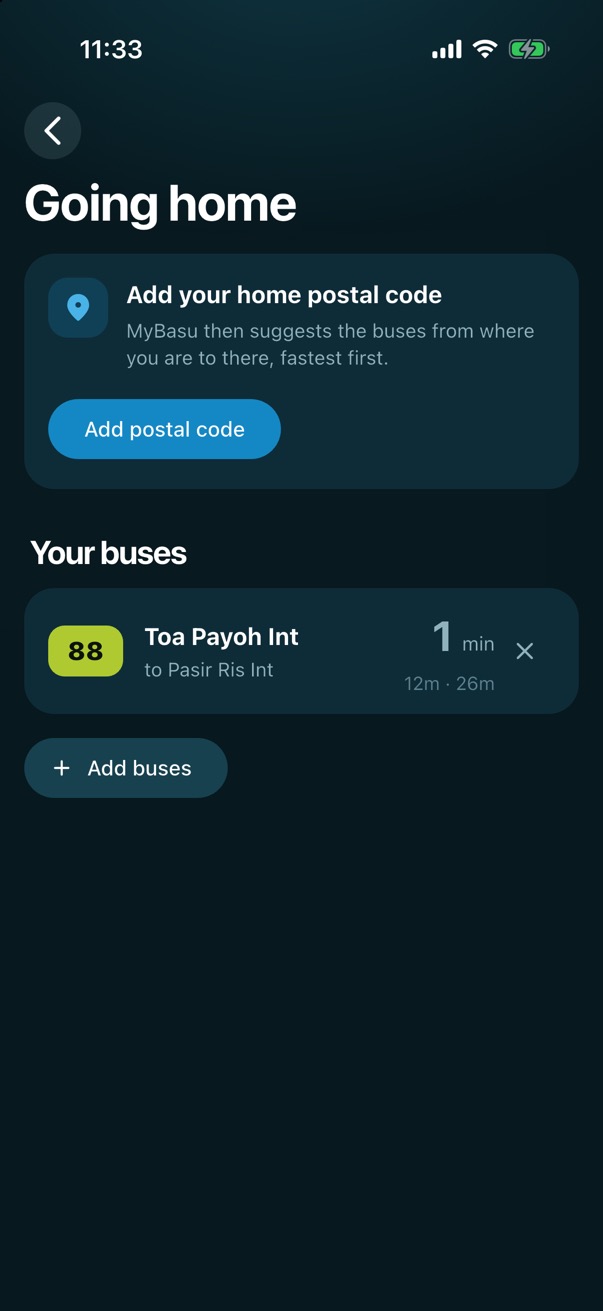
- On Going home, tap Add postal code.
- Type your 6-digit postal code.
- Tap Find.
- Check that it's the right place, then tap Save.
- Under Suggested are the quickest ways there right now, by bus and train.
- Tap a suggestion to see the steps.
- Every step is spelled out. Tap a star to add that bus to your buses.
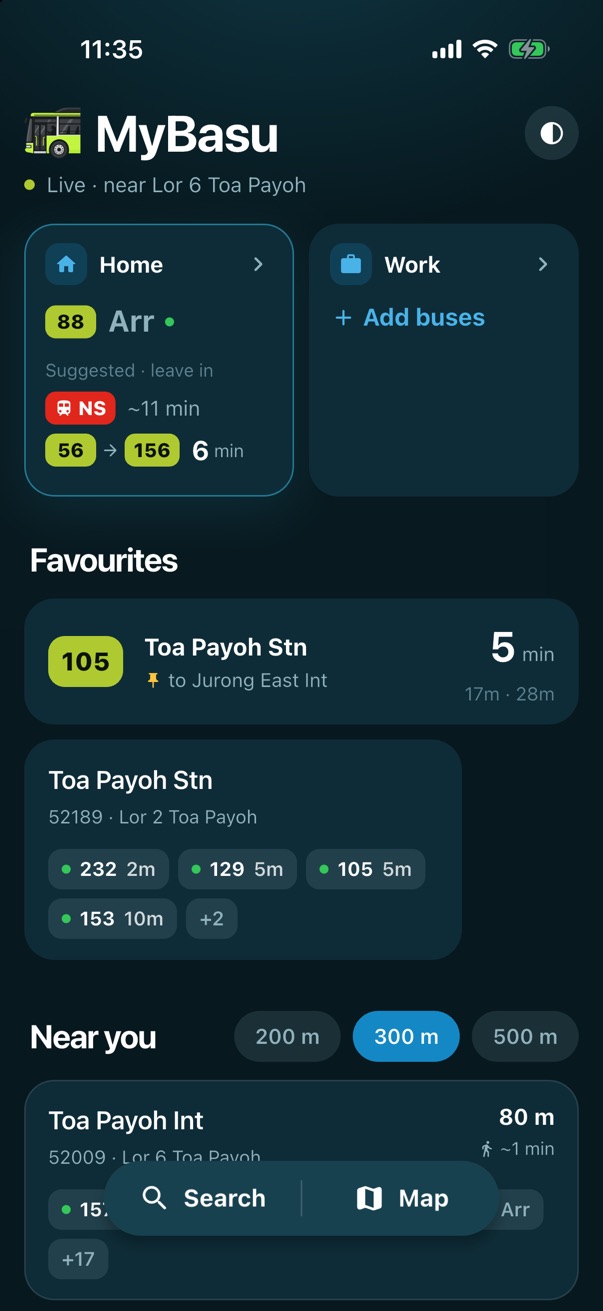
- The Home tile shows your buses and the best way home, at a glance.
Good to know: before noon the Home tile has a teal edge, and after noon the Work tile does: that's the trip you're most likely making.
Never miss your bus
Arrival alerts
Get a heads-up before your bus comes, so you can leave on time.
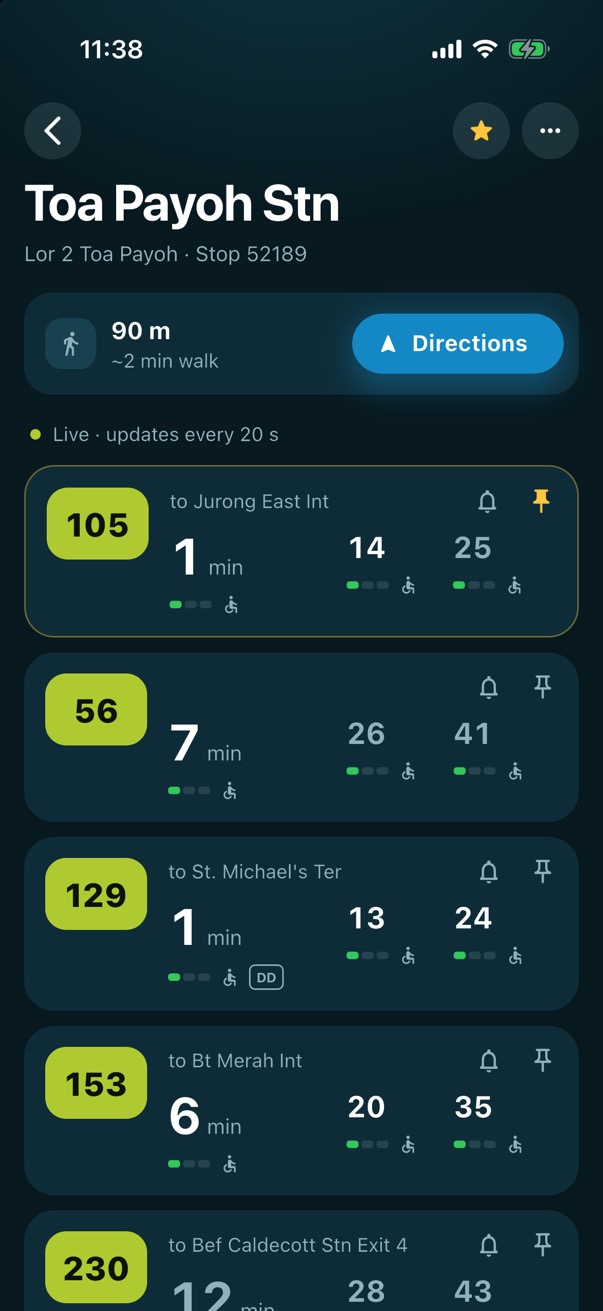
- On a stop, tap the bell next to your bus.
- Choose how many minutes before it arrives you want to know. MyBasu suggests a time based on your walk to the stop.
- Tap Set alert.
- The first time, tap Allow so MyBasu can send you notifications.
- The bell turns blue. Your alert is set.
- When the bus is that close, your phone tells you.
Good to know: an alert switches off once the bus has passed. MyBasu re-checks the bus while it's open, so the timing is best if you keep it open. On Android, also allow Alarms & reminders for MyBasu.
Countdown on your Lock Screen
Watch your bus count down without opening the app.
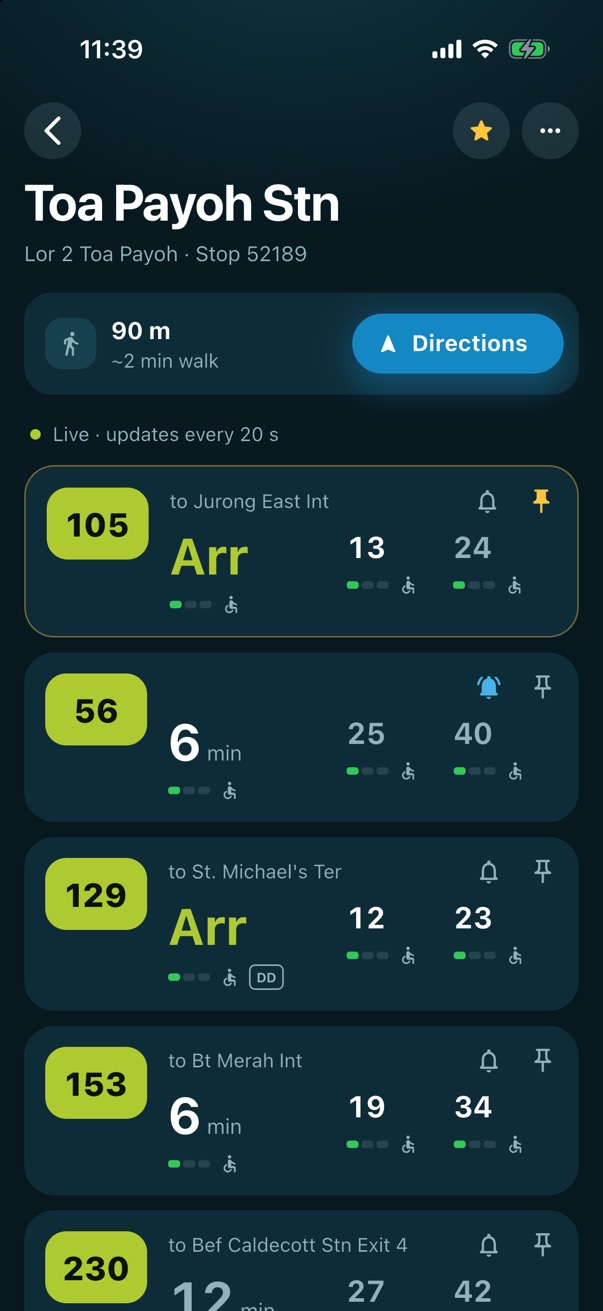
- On a stop, tap the bell next to your bus.
- Tap Show on Lock Screen.
- Lock your phone. The first time, tap Allow.
- Your bus counts down on the Lock Screen, and you can see how close it is.
On Android: the same button puts a live countdown in your notifications and on your lock screen.
Home Screen widget
See your next buses without opening MyBasu.
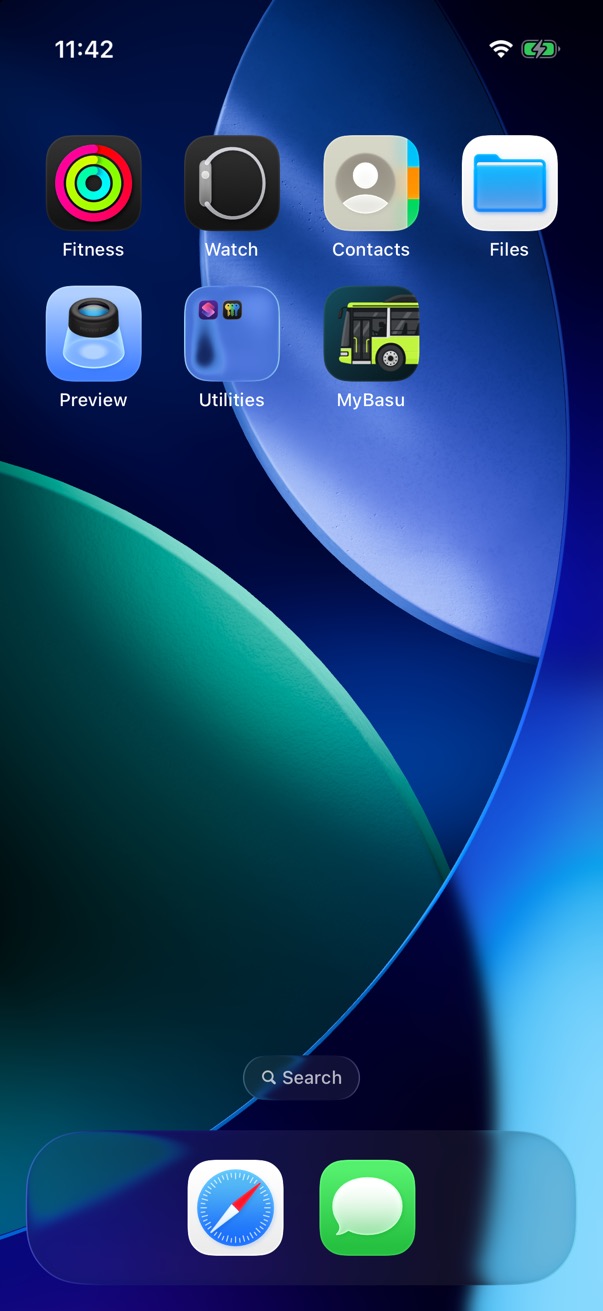
- Touch and hold an empty spot on your Home Screen.
- Tap Edit at the top left.
- Tap Add Widget.
- Search for MyBasu.
- Tap MyBasu.
- Swipe to choose a size.
- Tap Add Widget.
- Your next buses are on your Home Screen, and they keep themselves up to date.
Good to know: the widget shows the stop of your Home buses in the morning and your Work buses after noon. If you haven't set those, it shows a pinned bus or a favourite stop. On Android: touch and hold an empty spot, tap Widgets, find MyBasu and drag it onto your Home Screen.
More
See a bus's route
See every stop a bus calls at, and where the next bus is right now.
- On a stop, tap a bus.
- Every stop it calls at, in order, with your stop highlighted. Scroll back to see the bus coming.
- The lime bus is the next one, live. Here it's 4 stops away.
Tip: tap the arrows at the top to see the other direction. Tap any stop on the route to see its buses.
The map
Find stops around you on a map, and watch the buses come.
- Tap Map at the bottom.
- Each circle is a bus stop, and the blue dot is you. Tap a stop.
- The buses on their way show on the map, live. Tap the card to open the stop.
Tip: use the search bar at the top of the map to jump to any stop, and the round button on the right to come back to where you are.
Rename a stop
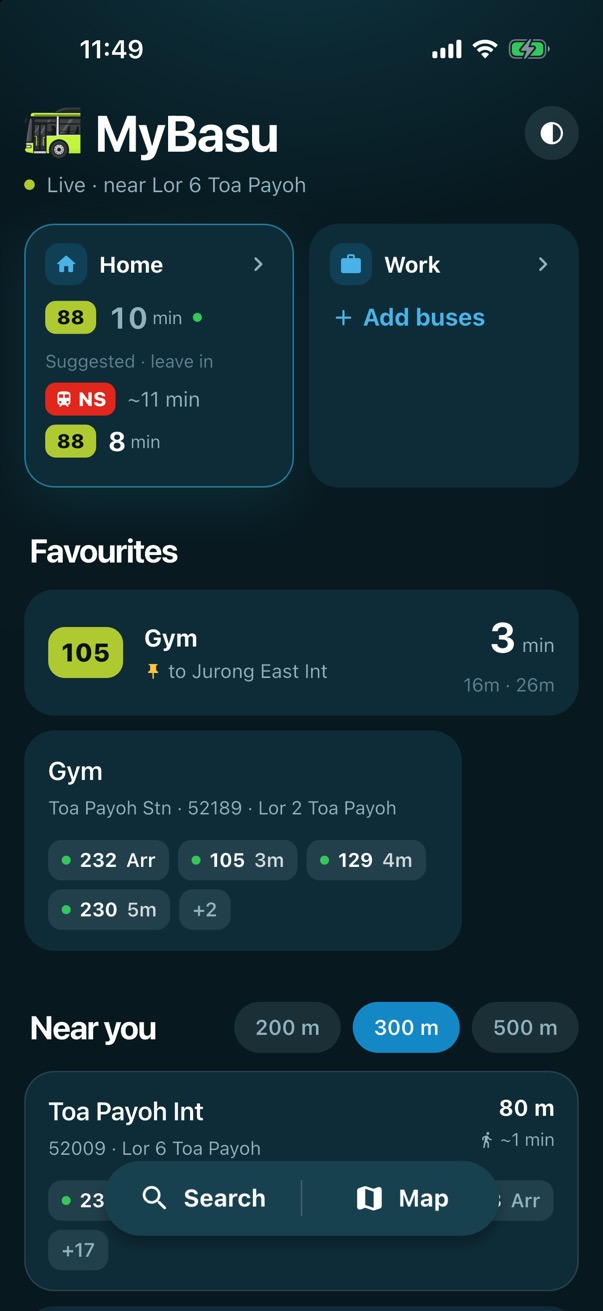
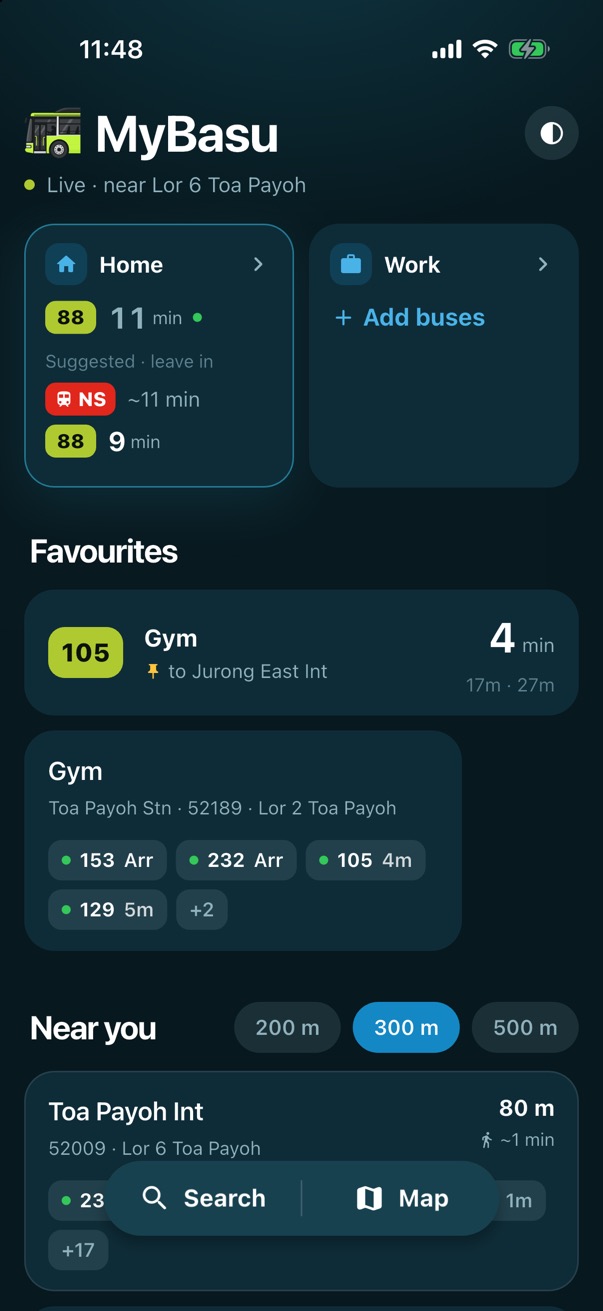
Give a stop a name that means something to you, like “Gym” or “Mum's place”.
- On a stop, tap ••• at the top right.
- Tap Rename stop.
- Type a name you'll recognise.
- Tap Save.
- Your name shows everywhere in MyBasu, with the official name underneath.
Tip: to go back to the official name, open Rename stop again and tap Use original name.
Light or dark
Choose the look you like.
- Tap the round button at the top right of the home screen.
- Choose Light or Dark, or System to match your phone.
- It changes straight away. Tap above to close.
- All set.
Back to all guides · Still stuck? Help and contact